Free, open-source dictation for Windows and Mac
Navi
Hold a key and talk. Let go, and your words appear wherever you were typing, tidied up on the way in.
Install
Let Claude install it.
If you use Claude Code, copy this prompt and paste it in. It gets Navi onto your computer, on Windows or a Mac, and opens it. Codex can do the same.
- 1Copy the prompt
- 2Paste it into Claude Code
- 3Do Navi’s set-up when it opens
Rather do it yourself? On Windows, run the installer from the latest release. On a Mac, follow Build on a Mac.
Install Navi on this computer for me. It’s a free, open-source dictation app: https://github.com/GoodLadTom/navi

On Windows, download the Windows installer (the .exe) from the latest release, https://github.com/GoodLadTom/navi/releases/latest, and run it.

On a Mac, clone the repository and run scripts/mac-setup.sh from inside it. It checks the tools Navi needs, offers to install anything missing, builds Navi and copies it to Applications.

If a step needs my password or a click in a system dialog, stop and tell me exactly what to do. When it’s installed, open Navi and I’ll do its set-up.
Watch
How Navi works, in under two minutes.
How it works
Hold, talk, let go.
Navi waits in the tray for one shortcut. It works in almost any app: email, Slack, Word, your browser, a terminal.
- 1
Hold Ctrl+Win
Or any key you choose. On a Mac it’s Right Option to start with. The bubble appears and the firefly flies in, so you know it’s listening.
- 2
Talk normally
Ums, ers and false starts come out. Say “full stop” or “new paragraph” if you like.
- 3
Let go
Your words land where your cursor was. Whatever you’d copied is put back on the clipboard.
What it does
Writes the right thing for wherever you are.
Navi checks which app has your cursor and shapes your words to suit it. You can always pick a mode yourself.
An email for Outlook, a message for Slack, a brief for your terminal.
That’s Auto mode. Outlook and Gmail get clear paragraphs. Slack, Teams and WhatsApp get something short and natural. A terminal, ChatGPT, Claude or Codex gets Prompt: a clear brief for an AI tool, with the right file names from a project folder you’ve added. Everywhere else gets Clean.
The rewriting modes use AI if you’ve set one up. Without it, every mode still gets tidied on your computer. You can write your own modes too.
Change your mind out loud.
Start with “Navi” and say what to change. Edits work on what Navi just typed for ten minutes, as long as you’re still in the same window. Select some text first and you can rewrite that instead.
Turn on Listen for voice commands and you don’t even need the shortcut: say “Navi” and keep talking.
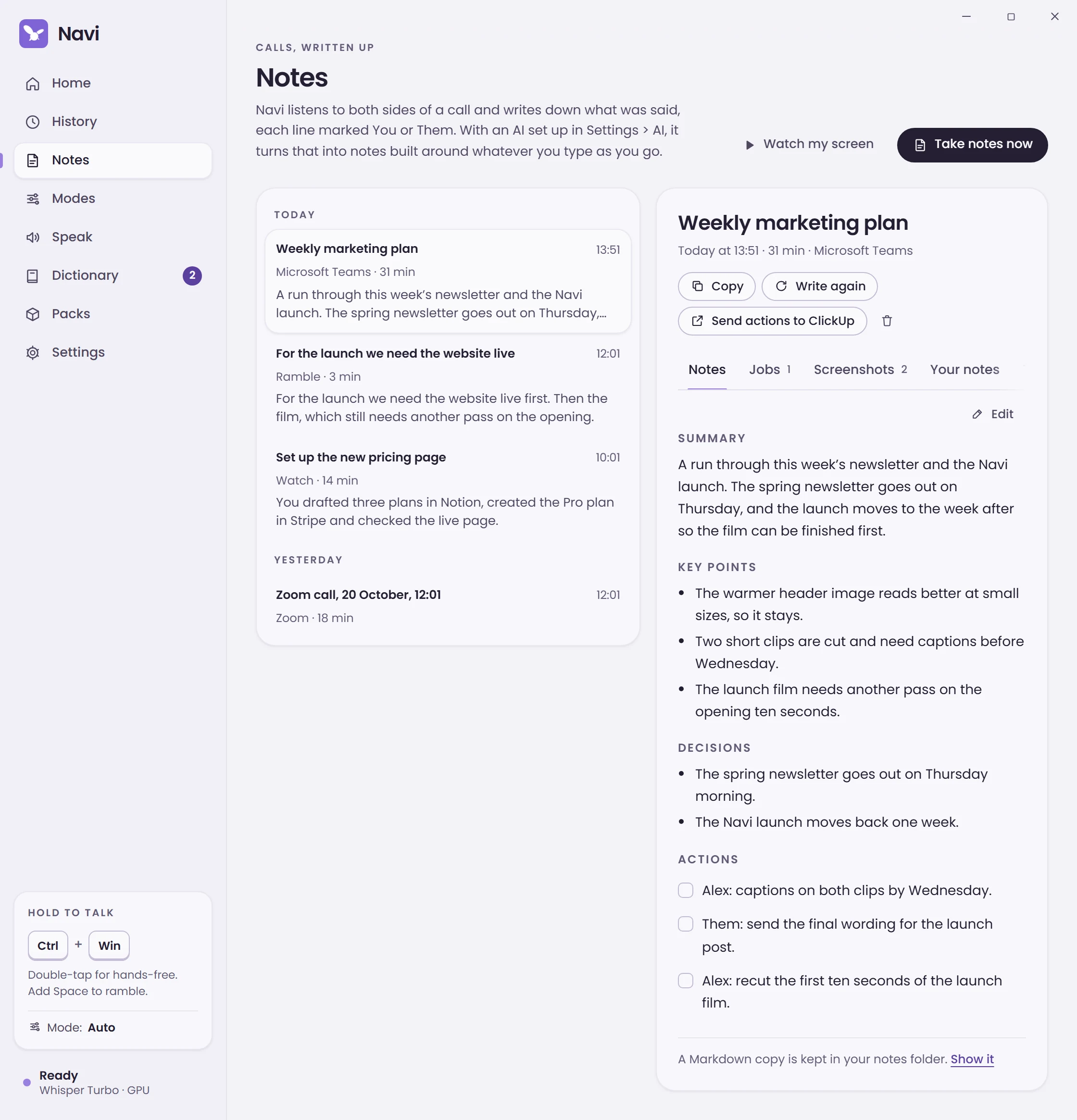
Talk it through, and get notes back.
Hold your shortcut, tap Space and ramble for as long as you like. Navi turns it into a title, a summary, key points, decisions and tasks.
When a call starts in Teams, Zoom, Google Meet, Slack, Discord or WhatsApp, Navi offers to take notes. It transcribes both sides on your computer, marks each line You or Them, and never saves the audio.
Tasks and actions can go straight to ClickUp or Notion. Without AI, Navi still writes rough notes on your computer.
Learns your words
Correct a word Navi got wrong and it notices. Make the same fix twice and the word goes in your dictionary, so names and jargon come out right after that.
Watch my screen
Say it and get on with your work. Navi keeps a screenshot whenever the screen changes, then writes up what you did with the pictures that matter. Ideal for catching a presenter’s slides on a call.
Your AI only ever sees the text on the screenshots.
Speaks your language
English to start with. Switch to Detect automatically and Whisper Large v3 Turbo handles 99 of them.
Works offline
Transcription, the tidy-up, your dictionary, “scratch that” and History all work with no connection at all.
Every take kept
Play a take back, copy it again or re-run it in another mode. The text stays until you delete it.
Ten quiet sounds
A soft cue tells you when Navi starts and stops listening. Press one to hear it.
Six colours
The app, the bubble, the firefly and the tray icon all follow. Try one on this page.
Or just say “Navi, turn gold”.
Packs for your team
Share your words, snippets and modes as one file, or install a pack from a link that keeps itself up to date. Everyone spells the client’s name the same way.
Reads it back
Add an ElevenLabs key and Navi reads text aloud in any voice on your account, from the Speak page or straight from History.
Privacy
Your voice stays on your computer.
Transcribed here
Navi runs Whisper, the speech recognition, on your own machine. There’s no cloud speech-to-text anywhere in the code.
Read here
To get names right, Navi can read the window title and the text near your cursor. Password boxes are never read, and password managers are left out from the start.
One switch for offline
Local only stops everything that goes online, apart from downloads you start. AI then works only with Ollama or a server on your own computer.
Kept as long as you like
Recordings are deleted after 30 days unless you change that. Turn History off, or clear it, whenever you want.
AI, if you want it
Optional AI, on the plan you already pay for.
Navi doesn’t need AI. Transcription and the tidy-up run on your computer. Switch AI on and you also get the rewriting modes, edits like “make that shorter”, notes from rambles and calls, and screen write-ups.
Whichever you pick, the AI only ever gets text: your words and a little context such as the app’s name. Never audio, never pictures. Clean mode stays instant, because its tidy-up doesn’t wait for these tools.
Install it
Paste one prompt into Claude Code, or get the installer from the latest release on GitHub.
Run set-up
Seven short steps: your name, a sound, your microphone, your shortcut and the speech engine.
Hold and talk
Anywhere you can type, hold your shortcut, say something and let go.
Windows 10 or 11, 64-bitmacOS 14.2 or later, best on Apple siliconNo admin rights neededOn a PC, an NVIDIA graphics card makes it faster, but isn’t needed
Questions